Notice

Join This Channel To Get Latest Phone Tips,Tricks,News,Network Security Course,Hacks etc. For Free on Your Mobile!! ... Join our Facebook Discussion Group -Regards Ankit
Showing posts with label facebook. Show all posts

25 August 2012

Like All Facebook Status at Once


STEP 1. First of all you have Login facebook using MOZILLA FIREFOX.

STEP 2.
Now install Autolike add-on on your firefox.

STEP 3.
Restart it after
doing second step.


STEP 4.
Now open facebook.com and just scroll down the page, you'll see all the status
are automatically liked.

 Enjoy...

16 July 2012

How To Backup/Download Your Facebook Data


So how do you backup all your Facebook data? Here is a quick and easy procedure to backup all the items mentioned above:
1. Login to your Facebook account.
2. Click the "Account" drop-down menu located in the top-right corner of your Facebook page.
3. Click on "Account Settings".
4. From the "Settings" tab, Look for the line that says "Download Your Information" and click the link to the right of it that says: "learn more".
5. Click the "Download" button on the page that follows.
After you click "Download", you will receive a Facebook pop-up message stating that they are "gathering" all your information into a ZIP formatted file for you to download. The message says it may take awhile and that they will send you an e-mail when the file is ready to be downloaded.
The length of time it takes to build the archive file will depend on how much data (videos, pictures, etc) that you have posted to your account. For people who have been using facebook for several years, this could take a few hours or more. Here is the Official Video about the Process:

Add the Facebook backup process to your regular backup routine. It's a good idea to backup your Facebook content every few weeks or months because you never know when the island that your Facebook data may be residing on might decide to implode or travel back in time to 1977. Good luck getting your funny cat videos back if that happens.
Enjoy...

12 September 2011

Secure Your Facebook Account to Next Level


Step 1: Go to Account Settings and Enable Notifications

When you’re logged into Facebook, you’ll see the word “Account” in the top right corner of the browser window. Click there to get a drop-down menu of options, then click on “Account Settings,” as pictured below.
 You’ll end up looking at a page that lists ways you can customize your account, including “Name,” “Password,” “Linked Accounts” and “more.” As long as you don’t navigate away from the “Settings” tab, you’ll see “Account Security” close to the bottom of the list. Click “change” on the right to show the following option:

Check “Yes” when you see the prompt, “Would you like to receive notifications for logins from new devices?” Then click “Save.” The feature is turned on. Now we’ll show you how to use it.

Step 2: Log In and Register Your Computer

The settings won’t be customizable until you register the computer you’re logged in with, so you’ll have to first log out and then log back in. You can do this from the “Accounts” button in the top-right corner, as we mentioned before. When you log in again, you’ll see a screen titled “Register this computer.”
 Type the name of the computer in (it can be anything you want as long as it’s something you’ll recognize and remember), and choose whether you want Facebook to remember this computer or not.
Facebook suggests a good rule of thumb: If the computer is a public one (like one you’d use at a library, a shared work computer or a machine in your school’s computer lab), leave the box unchecked so it will have to be registered each time a new login occurs, leading to an e-mail or text notification.
If it’s a machine you use every day, then go ahead and check the box; you probably don’t want to receive an email every time you log into Facebook from a safe place!
 Now that your computer is registered, you can see more options when you revisit the “Account Settings” page where you first enabled the notifications. You’ll see a history of registrations; it won’t record every time you log into a computer that’s already registered, but it will record every new registration, which should include at least the first time any tricker logs in.
You can check or uncheck the option to have the immediate notifications sent to your cell phone via text message in addition to the basic email option.


Enjoy...

10 April 2011

Secure++ Facebook Account


How to Enable and Customize Facebook Login Notification Feature

Follow the steps given below to enable the notifications for every login to your facebook account from the new devices (which you have never used in the past to access facebook).

Step 1: Enabling Notifications for logins from New Devices

In the top right portion of your Facebook profile page or homepage you can see three tabs namely Home, Profile, Account. Click on the Account tab and then click on the Account Settings in the drop down menu (see the screenshot below)
Facebook account settings Avoid Facebook Account Hacks by Enabling Login Notification Feature
After clicking on the Account Settings tab you will land up on a page where you can customize your account settings by changing your name, username, email etc. Scroll down the page you’re on, click on the second last option of Account Security.
facebook account security1 Avoid Facebook Account Hacks by Enabling Login Notification Feature
Here you can enable notifications for logins to your facebook account  from new devices. Click on Yes and then hit the Submit button. This will enable Login notifications for your facebook account.

Step 2: Facebook Computer Registration

Now Logout your facebook account and then login again. Just after login you will see a page prompting you to register your computer.
Facebook computer registration Avoid Facebook Account Hacks by Enabling Login Notification Feature
Name your computer whatever you want and also specify whether you want Facebook to remember the computer being registered or not. For public computers make sure you leave this box unchecked and for personal computers it should be checked.
Similarly you can register other computers or mobile devices too by following the same procedure mention above. For managing your registered computers, go to Account (in top right corner of facebook homepage) >> Account Settings >> Account Security.
Facebook account security1 Avoid Facebook Account Hacks by Enabling Login Notification Feature
Now for any login to your facebook account from an unregistered computer, facebook will send you notifications via email or SMS.
Note: If you  will clear your browser cookies for any reason after registering  a computer then you would have to register it again.
Enjoy...

06 April 2011

Facebook Status Symbols


Select character and press Ctrl+C Go to Facebook.com and press Ctrl+V
♥ ☺ ♬ ☻ ☹ ✉ ☼ ✩ ♨ ♫ ☁ ☂ ☃ ☎ ✔
☛ ☚ ✂ ✎ ☪ ✁ ✃ ✡ ☢ ❥ ❂ © ® ™ €
¥ £ ƒ $ ∑ « » ≤ ≥ * § & ≈ ß ◊
√ µ † • ≠ å ø π ı % æ Æ œ ¿
♈ ♉ ♊ ♋ ♌ ♍ ♎ ♏ ♐ ♑ ♒ ♓ ☬ ☫ ☨
♙ ♟ ♔ ♕ ♖ ♗ ♘ ♚ ♛ ♜ ♝ ♞ ♅ ♇ ♆
☭ ☮ ☯ ☥ ✖ ❁ ❀ ✿ ✾ ✽ ✺ ✵ ☒ ☑ ☠


31 March 2011

Facebook Shortcuts


Well Facebook is a very popular social community and people are spending their much time on Facebook so to make Ur Facebook browsing experience more fun u can use some nice keyboard shortcuts to speed up ur communication:

Well Keyboard Shortcuts depends on browser and Operating System:


Check it Below:

If U are using Windows + Crome Browser use these shortcuts:

1. Alt + ? = move’s ur cursor to search Box.
2. Alt + M = New Message
3. Alt + 1 = Home Page
4. Alt + 2 = Profile Page
5. Alt + 3 = Friend Requests
6. Alt + 4 = Messages Menu
7. Alt + 5 = Notifications Menu If U are using Windows + Firefox Browser use these shortcuts:

1. Alt + Shift + ? = move’s ur cursor to search Box.
2. Alt + Shift + M = New Message
3. Alt + Shift + 1 = Home Page
4. Alt + Shift + 2 = Profile Page
5. Alt + Shift + 3 = Friend Requests
6. Alt + Shift + 4 = Messages Menu
7. Alt + Shift + 5 = Notifications Menu

If U are using OS X + Firefox Browser use these shortcuts:

1. Function + Ctrl + ? = move’s ur cursor to search Box.
2. Function + Ctrl + M = New Message
3. Function + Ctrl + 1 = Home Page
4. Function + Ctrl + 2 = Profile Page
5. Function + Ctrl + 3 = Friend Requests
6. Function + Ctrl + 4 = Messages Menu
7. Function + Ctrl + 5 = Notifications Menu

If U are using OS X + Other Browser use these shortcuts:

1. Ctrl + Option + ? = move’s ur cursor to search Box.
2. Ctrl + Option + M = New Message
3. Ctrl + Option + 1 = Home Page
4. Ctrl + Option + 2 = Profile Page
5. Ctrl + Option + 3 = Friend Requests
6. Ctrl + Option + 4 = Messages Menu
7. Ctrl + Option + 5 = Notifications Menu

So become a Facebook Power User Today with these Helpful Shortcuts.

Enjoy...

23 March 2011

Remove Facebook New Image Popup


Hi Guys,
You must have noticed annoying Facebook Theater view while scrolling picture.Today,i am gonna show you a simple trick that will do the job for you.
 We See:
http://www.facebook.com/album.php?id=XXXXX&aid=24388#!/photo.php?fbid=1XXXX&set=a.XXX&theater

 Ok,Got the Picture?

Just Remove The Code in Red and Your Job is Done.

Your New link will Look Like:
http://www.facebook.com/album.php?id=XXXXX&aid=24388#!/photo.php?fbid=1XXXX&set=a.XXX
Enjoy...

11 March 2011

Facebook Instant Personalization


Did you know that the new Facebook Instant Personalization privacy setting shares your user information to third party websites on default?

According to what I have understand through several articles, Facebook Instant Personalization means that any application or third party you use through FB will be able to pull out your user information to give you a personalized experience on their app/site.

I don't really know, if this is actually good or evil like discussed by many people on the web? Some say that these new settings make it easier for apps or sites to determine what you probably like on their site. You'll be able to see what people in your friends circle like related to this certain app/site, and it also works the other way around. On the other hand there are also people that say Instant Personalization leaves the doors open to privilege abuse. People are able to see your related activities and information, weather you like it or not. You can find more insightful articles on this issue on the web.

If you feel uncomfortable about this whole situation and decide that you want to be more in charge of your private information, you can still opt out of this setting. Here are steps on how to disable Facebook Instant Personalization:
  1. Choose Privacy Settings from Account.
  2. Scroll down to the left bottom of page and edit your settings in Applications and Websites.
  3. Edit settings in Instant Personalization.
  4. Deselect Enable instant personalization on partner websites and confirm to save changes.
You also might want to check out the Edit settings in Info accessible through your friends. There is a note saying that: your name, profile picture, gender, networks and user ID (along with any other information you've set to everyone) is available to friends' applications unless you turn off platform applications and websites.


Enjoy...

27 February 2011

Change Facebook Profile Color


You will need mozilla Firefox for this
Facebook has been one of the most popular social communities in the world, but I was thinking, what can I do to “spice up” my Facebook profile.
Well I was googling the net and found a script to do so…
Follow these simple steps:
Firstly you have to download Greasemonkey (Needs Mozilla Firefox).
Restart Firefox (close app and open again).Now, Download Facebook Auto Colorizer.
Refresh Facebook Page and Get Colorized..!

    Enjoy...

    22 February 2011

    Unblock Facebook


    1. Go to Unblock facebook now Now site.

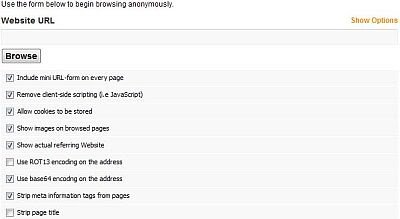
    2. You will see something like this :


    Unblock facebook

    3. Now, simply enter www.facebook.com in text field below “Website URL” and hit “Browse” to unblock Facebook site.
    4. Thus, now your blocked Facebook is converted to unblocked Facebook and you can now get into facebook at school or office using this hack
    Thats it. Just check out this Facebook proxy site server useful to unblock Facebook site. Thus, you can now bypass Facebook restrictions imposed by sytem admins and unblock Facebook site. This proxy site can not only unblock Facebook, but also unblock myspace, orkut and many other blocked sites. If you have any problem in using this Facebook proxy site to unblock Facebook,

    Enjoy...

    18 February 2011

    Banners in Facebook Profile


    this types of banner make impress to your friends . you can also add your best singers,flowers,music band,movies,video games and lots of Banner easily…

    Lets introduced  this Facebook apps…

    Fbanners is the first facebook banners website and apps  on the internet. it have hundreds of Bands banners for you to choose from categories .
    there are variety of styles they have available you should be able to find one that atches your taste.
    How to use?
    Simple  go to website “select your categories” banner click “update on your facebook profile”
    Done!!!!
    Enjoy this apps!!!!
    Enjoy...

    08 October 2010

    Change Facebook Profile Background


    Bring life to your Facebook with Chameleon Tom!

    Change layouts, backgrounds and colors of your Facebook to anything you want!

    Simply select a new theme from our gallery to customize your facebook.

    This is an application designed for Facebook and is all completely FREE.

    Many different designs available. Simply Install The Plugins and Pimp Your Profile..

    Download and Install

    Enjoy...

    Views This Month


    HaCk-O-PeDia - The Hacker's Encyclopedia. Copyright 2010 All Rights Reserved To Ankit